
Import contacts
Bring your existing customers into MailHoor from a CSV file. MailHoor cleans the list as it imports, so bad addresses never reach your campaigns.
Prepare your file
- Use a CSV or XLSX file, up to 25 MB. If you save CSV from Excel, choose CSV UTF-8 so Arabic names stay correct.
- Put the email addresses in a column named Email. If the import says Email column not found, rename that column to
Email. - Recommended columns:
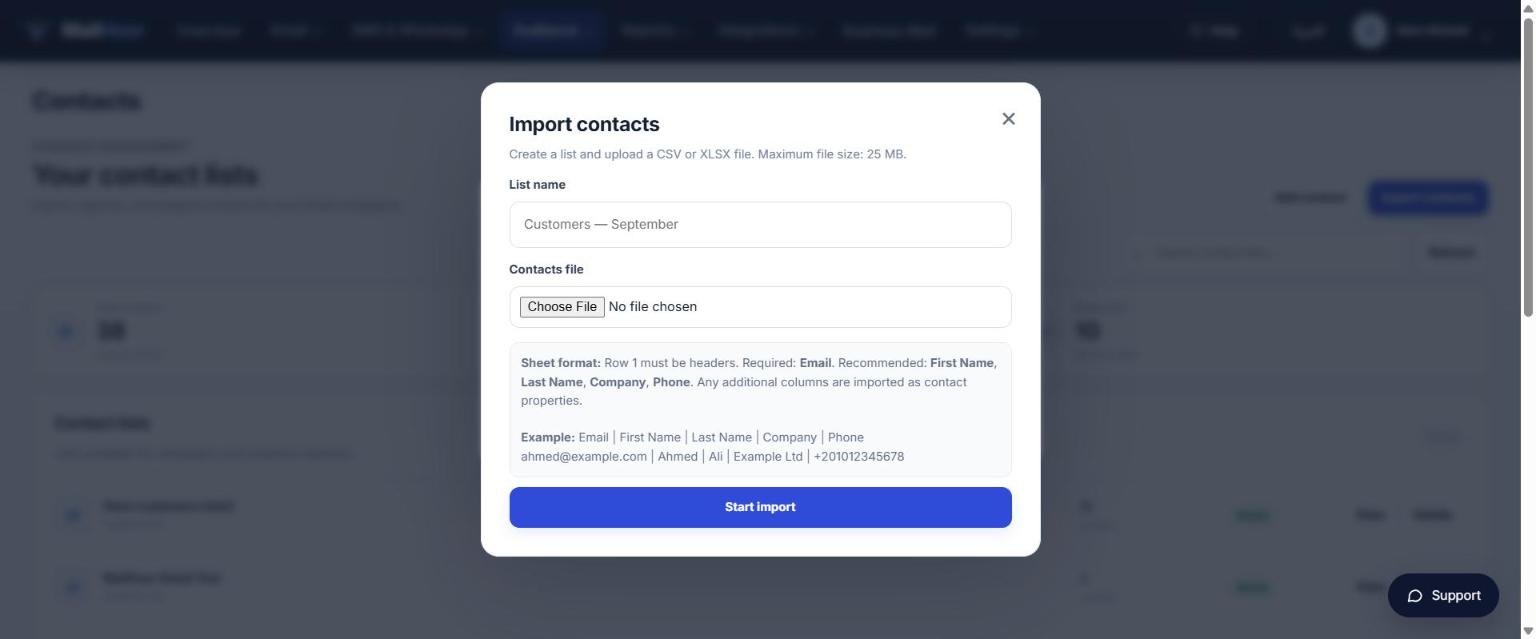
First Name,Last Name,Company,Phone. Any other column is imported as a contact property. - One contact per row, with the column names in the first row.
Email,First Name,Last Name,Company,Phone
sara@example.com,Sara,Ali,Example Ltd,+201012345678
omar@example.com,Omar,Hassan,,
Import
- Open Audience → Contacts and click Import contacts.
- Type a list name, for example Customers — September.
- Choose your file and click Start import.
- Review the summary of what was imported and what was removed.
What MailHoor removes during import
| Removed | Why |
|---|---|
| Temporary or disposable addresses | They expire and bounce |
| Domains that cannot receive email | Every message would bounce |
Generic addresses (info@, admin@ …), when you choose to |
Often shared mailboxes that complain or ignore mail |
You can download the removed rows as a CSV to review them. Contacts who unsubscribed, bounced or complained in the past are also skipped automatically when you send.
Permission matters
Import only people who agreed to receive email from you, such as customers and subscribers. Purchased lists cause complaints and can get your domain blocked.
Add contacts in other ways
- Signup forms and landing pages add subscribers automatically.
- Integrations bring leads from Facebook Lead Ads, HubSpot and your online store.
- The API adds contacts from your own systems.
Still need help? Email support@mailhoor.com or call +20 101 072 9258. We answer in Arabic and English.