
Business Mail
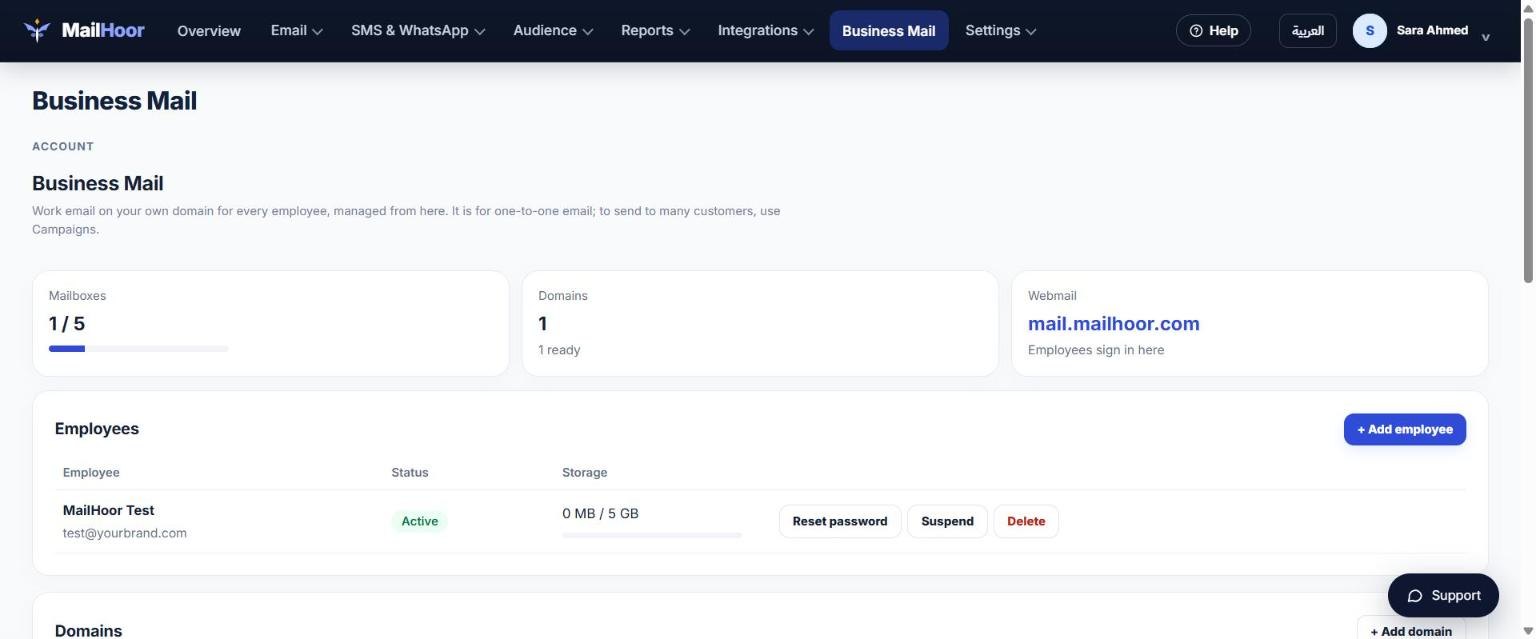
Real mailboxes for your team on your own domain, such as sales@yourbrand.com, for day-to-day email. Included from the Business plan.
Campaigns or Business Mail?
| Email campaigns | Business Mail | |
|---|---|---|
| For | Sending one message to many customers | One-to-one conversations |
| Who uses it | Marketing, through the portal | Each employee, in webmail, Outlook or a phone |
| Example | A newsletter to 5,000 subscribers | A customer replies to sales@ and a colleague answers |
| Counts towards monthly volume | Yes | No |
Never send bulk email from a mailbox
Mailboxes have a daily sending limit. Sending newsletters from them gets the mailbox blocked and can hurt your domain. Use campaigns for lists.
Mailboxes per plan
Business: 5 · Professional: 10 · Enterprise: 25.
Set up Business Mail
- Open Business Mail in the top menu and add your domain, for example
company.com. - Add the DNS records shown, including the MX records that deliver incoming mail to MailHoor.
- Create a mailbox for each employee: their address, name and password. You can also add aliases, such as
info@delivering to an existing mailbox. - Share the sign-in details with each employee.
Already receive email on this domain?
Changing the MX records moves incoming mail for the whole domain to MailHoor. If your team already uses Google Workspace, Microsoft 365 or your host's email on this domain, plan the move first: create every mailbox in MailHoor, then change MX, so no mail is lost. If you are unsure, contact support before changing MX.
Webmail
Employees sign in at mail.mailhoor.com with their full email address and password.
To connect Outlook, an iPhone or an Android phone, see Connect Outlook or a phone.
Security
Incoming mail is filtered for spam, and your domain's SPF, DKIM and DMARC protect your outgoing mail. Use a strong, unique password for every mailbox, and remove mailboxes when people leave.