
Signup forms
Add a form to your website that sends new subscribers straight to a MailHoor list.
Create a form
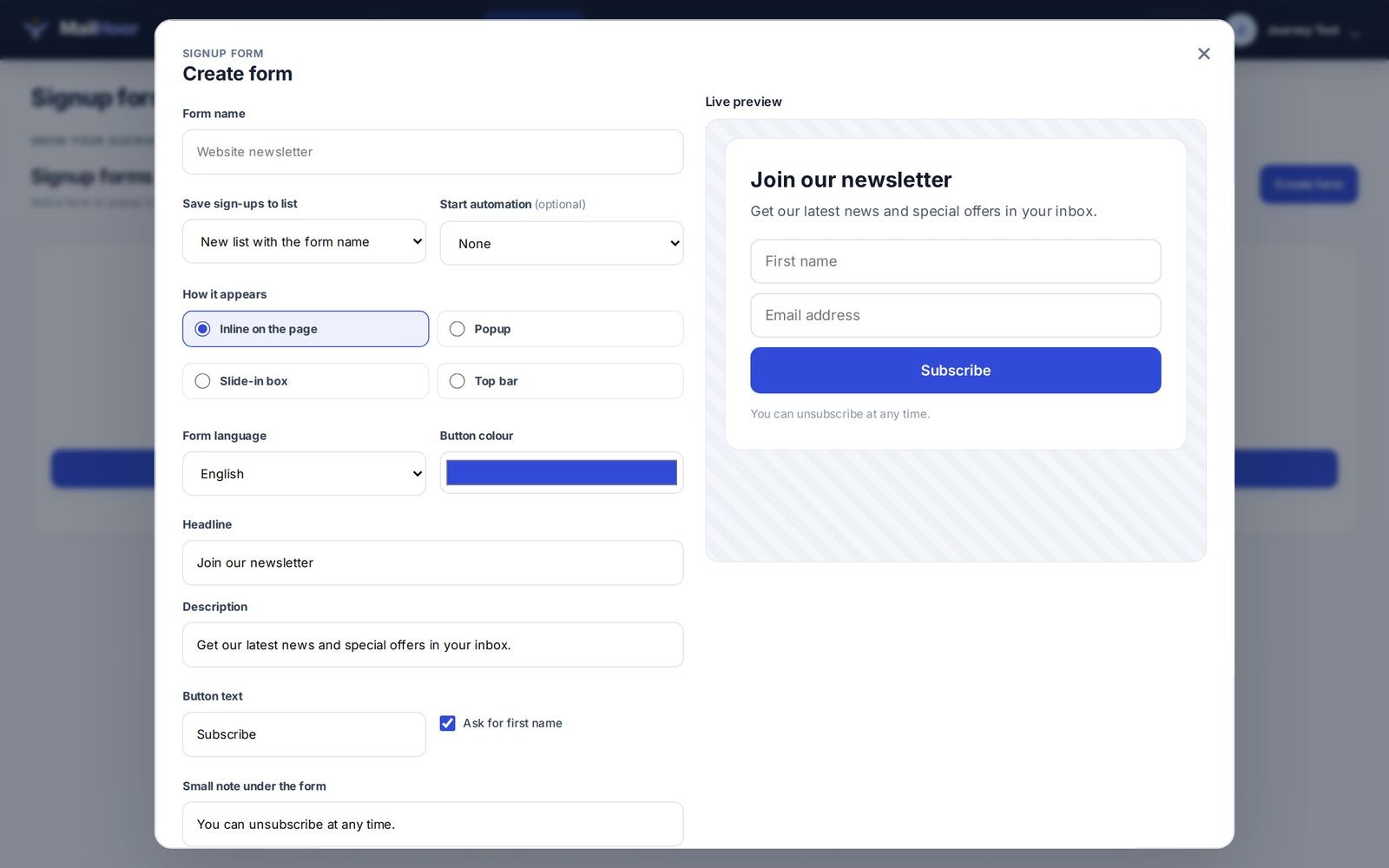
- Open Audience → Signup forms and create a form.
- Choose the list that new subscribers join.
- Edit the title, the fields and the button text. The default title is Get our latest news and special offers in your inbox.
- Choose what happens after someone subscribes: show a thank-you message or ask them to confirm by email.
- Copy the embed code and paste it into your website.
Double opt-in
With double opt-in, a new subscriber sees Almost done! Check your inbox and click the link to confirm, and is only added once they click. It keeps fake and mistyped addresses off your list and proves consent. We recommend it for every public form.
Where to place your form
- Your website footer and blog.
- A pop-up or a dedicated page with a clear reason to join: a discount, a guide, early access.
- A landing page built in MailHoor, which you can share in ads and on social media.
Deleting a form
Deleting a form stops it working on your website. Contacts it already collected stay in your list.
Connect a welcome series
Pair the form with a welcome automation so every subscriber hears from you while their interest is high.
Still need help? Email support@mailhoor.com or call +20 101 072 9258. We answer in Arabic and English.