
Create and send a campaign
A campaign is one email sent to a list or segment. Design it, test it, pass the pre-send check, then send now or schedule it.
1. Start a campaign
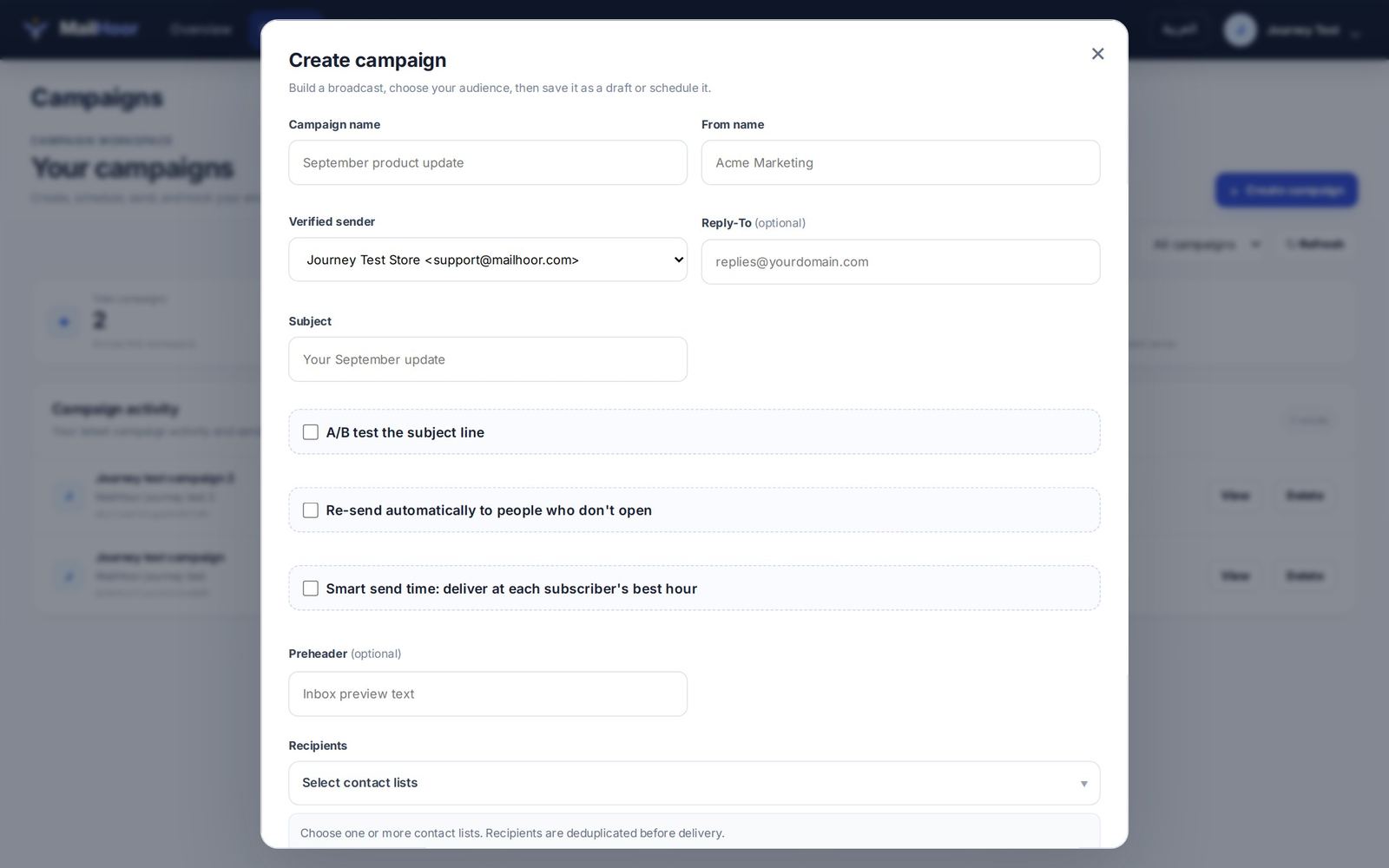
Open Email → Campaigns and click to create a campaign. The first screen asks for:
| Field | What to enter |
|---|---|
| Campaign name | An internal name you will recognise in reports, such as October newsletter |
| From name | The name people see, such as YourBrand |
| Verified sender | One of your verified senders |
| Reply-to (optional) | Where replies should go, if not the sender |
| Subject | The subject line |
| Preheader (optional) | The preview text shown next to the subject in the inbox |
| Recipients | One or more contact lists |
The same screen has three options: A/B test the subject line (see A/B testing), Re-send automatically to people who don't open, and Smart send time, which delivers at each subscriber's best hour.
2. Design the email
Choose how to build it:
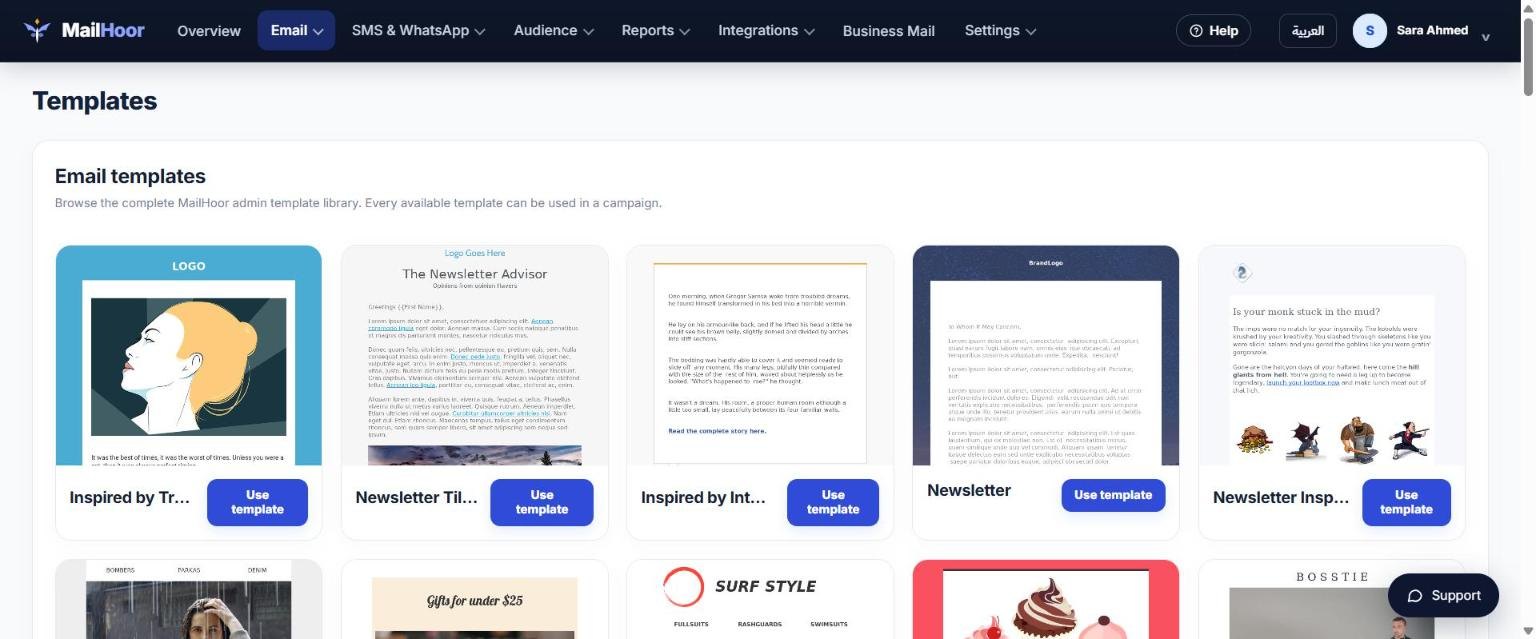
- Templates: start from a ready design in Email → Templates and change the text, images and colours.
- Drag-and-drop editor: build the layout from blocks such as text, images, buttons and columns.
- HTML: paste your own code if you have a designer.
On Professional, the AI writing assistant can draft or improve subject lines and text in Arabic or English.
Write a good subject line
- Keep it short and clear; many people read on a phone.
- Match the subject to the content.
- Use the preheader to add a second line of detail.
Personalise
Insert contact fields, such as the first name, so each email feels personal. Give a fallback for contacts who have no value in that field.
3. Check recipients and sender
Make sure the right lists are selected and the sender is the one your customers know. To send to engaged people only, use a segment.
4. Send a test
Send a test to yourself and a colleague. Check it on a phone and on a computer, click every link, and read it once in Arabic and once in English if you send both.
5. Send or schedule
Run the pre-send check. When it shows Ready to send, send now or schedule the campaign for a later date and time. If you ticked Smart send time (Professional), each contact receives it at the hour they usually open email.
After sending
Follow results in the campaign report. See Reports and analytics. On Business and above, the campaign report has Re-send to non-openers, so you can send it again with a new subject line.